Automating JTL-Wawi: Workflows, JTL-Ameise and JTL-Worker in Practice
Many tasks in JTL-Wawi repeat every day: checking orders, shipping, reordering, chasing payments. JTL-Wawi ships with the tools to automate them. This guide explains how Workflows, JTL-Ameise and JTL-Worker fit together and gives five examples you can rebuild.
Contents
Many tasks in JTL-Wawi repeat every day: shipping paid orders, reordering missing stock, chasing prepayments, loading supplier data. It adds up to hours, and every manual step is a chance for mistakes.
JTL-Wawi has its own tools for this. This guide shows what they do and how they fit together. It is based on the official JTL Guide (checked in October 2026), and we only name menu paths the guide itself names. Labels are given in German, as in the software, with an English explanation.
The four building blocks
- JTL-Workflows: rules that follow the pattern "when this happens and this condition is met, do that".
- JTL-Ameise: the import and export tool for CSV files. It works with templates and can also run from the command line.
- JTL-Worker: the background service that runs syncs and delayed workflows.
- JTL-eazyAuction: the module for selling on Amazon, eBay and other sales channels directly from JTL-Wawi.
Depending on your JTL edition, some features may be limited, for example the number of manual workflow events or the command-line version of JTL-Ameise. Check this in the JTL customer centre first.
JTL-Workflows: event, condition, action
Every workflow follows the same pattern:
- Event: what triggers the workflow? For example "order created", "fully paid" or "item changed". Events are grouped by area, such as items, orders, shipping or procurement.
- Conditions (optional): when should it apply? For example only for one payment method. You decide whether all, at least one or none of the conditions must be met.
- Actions: what should happen? According to JTL, the most common ones are "E-Mail senden" (send email), "Ausgabe" (output: print, or print plus email) and "Ausführen" (run an external program or script). Depending on the event, there are more actions, such as "Ausliefern" (ship), "Farbcodierung" (colour code), "Werte setzen" (set values), "Auf Einkaufsliste" (add to purchase list) or "Historieneintrag schreiben" (write a history entry).
The workflow administration is in the Admin menu under JTL-Workflows. For email texts or custom conditions you can use "Erweiterte Eigenschaften" (extended properties), written in the DotLiquid template language.
Three features worth knowing:
- Execution schedule: By default, a workflow runs immediately, but you can delay it or set a fixed time. With Nur letzten ausführen (run only the last one), several identical delayed workflows for the same object run only once: one email after several small edits to an item, not ten.
- Manual workflow events: You create your own event and trigger it for selected objects. This helps when a new workflow should also apply to existing records. According to JTL, manual events are not available for goods receipt, goods issue or incoming invoices.
- Test workflow: Simulate the workflow on a test object before it goes live.
JTL-Worker: nothing delayed runs without it
JTL-Worker is a separate program installed with JTL-Wawi. It runs syncs automatically, for example payment matching or data exchange with marketplaces and online shops. And: delayed workflows only run while JTL-Worker is running.
What the JTL Guide recommends for JTL-Worker 2.0:
- Dedicated user: Give JTL-Worker its own JTL-Wawi user with fixed credentials, so changing your own password won't interrupt it.
- Run it as a Windows service: It then starts automatically with the computer. If you start it manually, the window must stay open (minimise it, don't close it).
- Run it on the database server: This keeps the connection to the database short.
- Activate tasks: In Admin > JTL-Worker-Status you start the syncs you need and set the interval. JTL recommends at least 5 minutes to limit server load.
JTL-Ameise: template-based import and export
JTL-Ameise imports and exports data as CSV. According to JTL, typical uses are bulk changes, price updates based on supplier data, initial imports and exporting booking data for accounting (including in DATEV format). Saved templates can be reused. You open it via Start > JTL-Ameise.
JTL-Ameise can be automated from the command line. Started with parameters (database connection, template ID, input or output file), it runs without a user interface. With Windows Task Scheduler you can, for example, import a supplier stock list regularly; the guide shows an example with an FTP download. Templates must be created in the user interface first.
Two warnings from the JTL Guide:
- Workflows and Ameise: If JTL-Ameise may trigger a workflow, a large import can start a flood of workflows and slow the system down. The command line offers the parameter --no_workflows.
- Back up first: JTL warns that wrong use can cause serious data errors. Back up before every import and test new templates first; the command line has a test mode.
Connecting marketplaces: JTL-eazyAuction
With JTL-eazyAuction you sell on Amazon, eBay and other sales channels and manage listings and orders in JTL-Wawi. For the other channels, the guide lists these steps: activate the JTL-eazyAuction module once in the JTL customer centre, activate a licence for the sales channel and connect the channel. Then you start the automatic sync as a task in JTL-Worker.
Keep billing in mind: according to JTL, every order on a connected channel counts as a transaction billed through your order package, even if you don't import it.
Five example workflows
JTL describes examples 2 to 5 step by step in its guide. Example 1 combines building blocks that are documented there.
1. Mark orders by payment method Event: order created. Condition: payment method equals, for example, "Überweisung" (bank transfer). Action: Farbcodierung with a fixed colour. You can give the colours your own names in JTL-Wawi, and they are shown in order management.
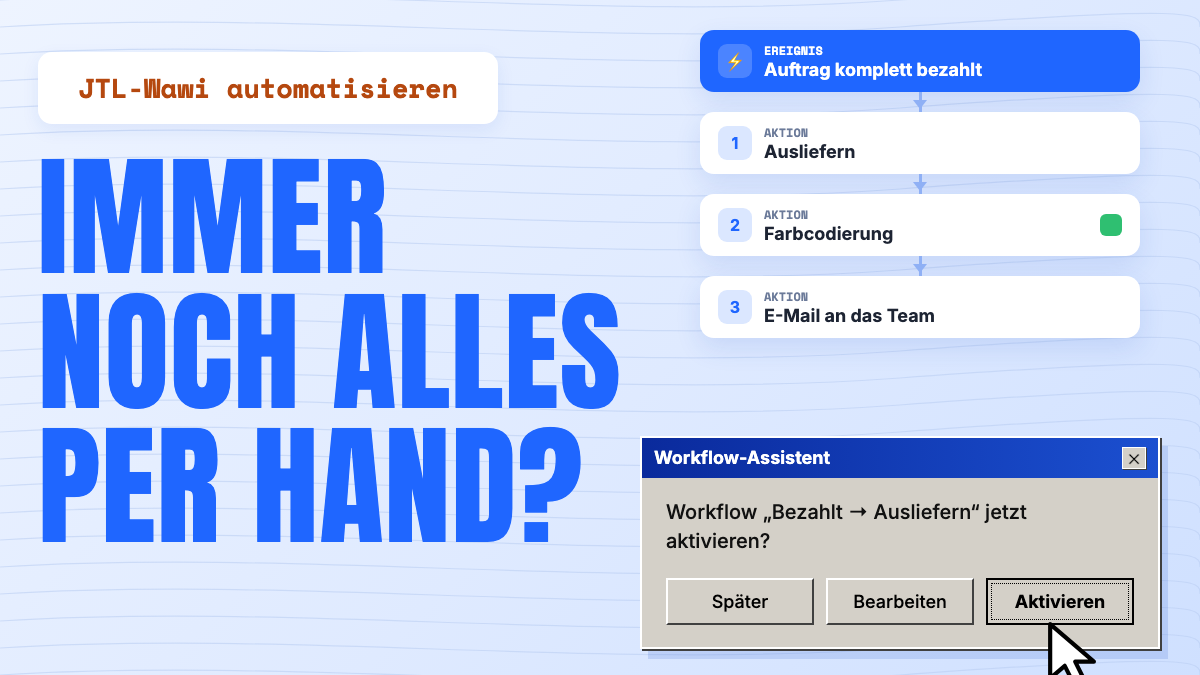
2. Ship paid orders automatically Event: order fully paid. Action 1: Ausliefern from a defined warehouse. Action 2: set the colour code to green. If your team should also be notified, add a third action E-Mail senden. This requires the email settings in JTL-Wawi to be set up correctly.
3. Add missing stock to the purchase list and inform purchasing Event: order created, run once a day at a fixed time. A condition uses DotLiquid to check whether an order line falls below a stock value. Action 1: Auf Einkaufsliste, optionally with "Bis Mindestlagerbestand auffüllen" (fill up to minimum stock). Action 2: E-Mail senden to purchasing with item number, name and stock level. Because the workflow is delayed, JTL-Worker must be running.
4. Payment reminder for prepayment A workflow on "order created" checks: payment method bank transfer, not yet paid. If so, it triggers a manual event. The workflow attached to that event sends a reminder to the customer's email address and puts itself back in the queue. In JTL's example this repeats every 5 days at 11:00 until payment arrives. JTL-Worker is required here too.
5. Print the delivery note and record it in the history Event: delivery note created. Action 1: Historieneintrag schreiben with order number and date. Action 2: Ausgabe, print with the delivery note template set.
Common mistakes
- JTL-Worker is not running: delayed workflows and syncs simply don't happen.
- Workflow not tested: a wrong condition can quickly hit hundreds of orders.
- Large Ameise imports with active workflows: this can cause performance problems.
- No backup before bulk imports.
Checklist for getting started
- List recurring tasks and sort them by frequency
- Check your edition: which workflow features and syncs are included?
- Set up JTL-Worker as a Windows service with its own user
- Check the email settings in JTL-Wawi
- Create one workflow per task, test it with a test object, then activate it
- For imports: create an Ameise template, test it with test data, back up your data
Seller2Go and JTL-Wawi
Seller2Go connects to JTL-Wawi through the Wawi Bridge, a small program that runs as a Windows service on your JTL-Wawi database server. It connects outwards to Seller2Go, so you don't need to open any firewall ports. Seller2Go can then access item, order and customer data. The Seller2Go app for iOS and Android keeps key shop information in view on the go. Learn more in the Seller2Go documentation.
Note: features and menus can change with new JTL-Wawi versions and depend on your edition. The current JTL Guide is authoritative. As of October 2026.