
Freshdesk Connector
Last updated: August 28, 2026
Open the Freshdesk Connector
Click “Configure” on the “Freshdesk Connector” tile.
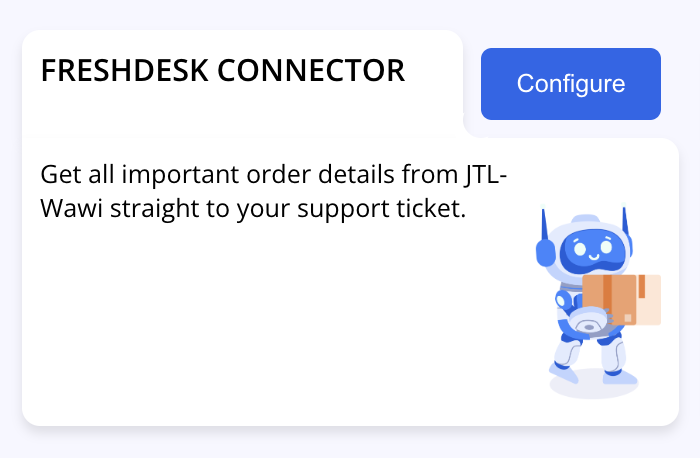
After opening it, the page with the Freshdesk API key inside Seller2Go appears first. Seller2Go provides its own API key here, which is entered later in Freshdesk.
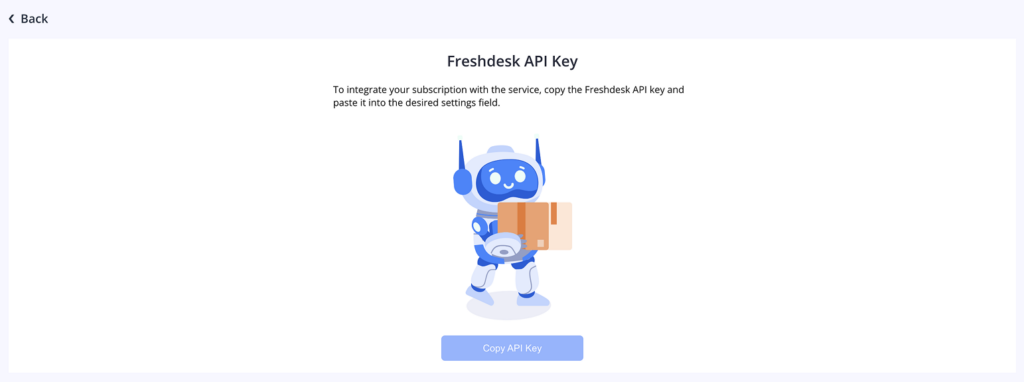
What happens on this page?
Here, Seller2Go provides its own API key, which will later be entered in Freshdesk.
Available action:
- copy the API key
✓ Note:When you click the button, the Seller2Go API key is copied to the clipboard.
✓ Important:You will need this key later in the Freshdesk app settings, so it is best to copy it when the configuration form in Freshdesk is already open, or store it temporarily in a safe place.
Freshdesk Connector Information, Pricing, and Trial Period
Below the configuration area, there is an information page for the Freshdesk Connector. It explains how the integration works and what benefits it offers.
Described benefits of the connector:
- automatic detection of order information
- direct access to order details from JTL-Wawi
- faster handling of support requests
- more context directly inside the ticket
Below that, you will find the “Our Prices” section. Seller2Go’s public pricing page states that all plans include a free trial period, and the page shows both trial and yearly pricing options.
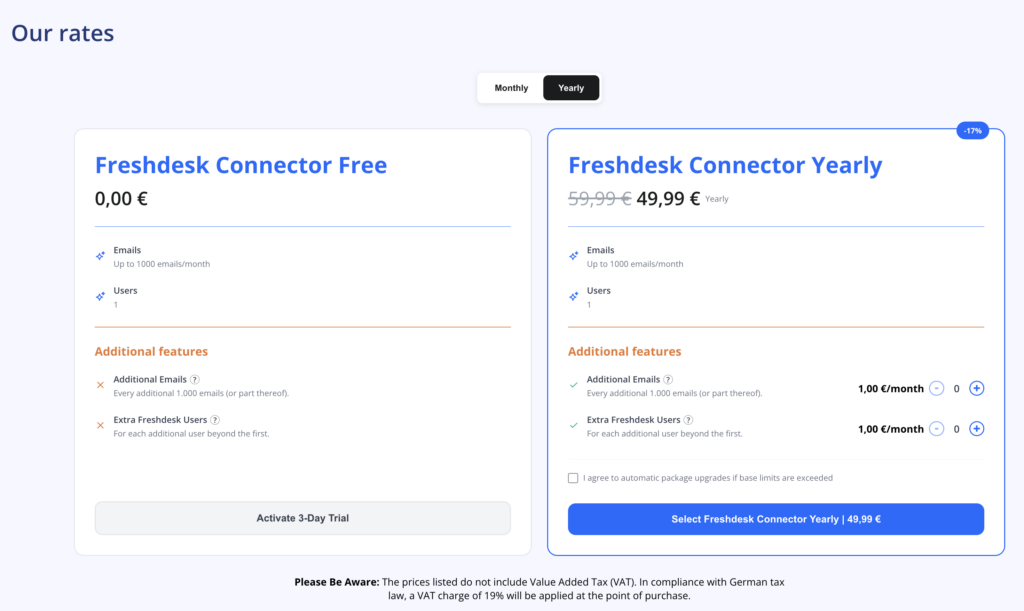
Visible in your workflow:
- a free trial plan
- a paid yearly plan
- additional optional add-ons, for example:
- additional email blocks
- additional Freshdesk users
✓ Note:In your test, the trial plan was used.
✓ Important:According to your note, this trial is provided free of charge for 3 days, so this should be stated clearly in the manual as a trial period to avoid confusion. Seller2Go’s public materials confirm the existence of a free trial, even though the exact trial length should follow the current in-product offer shown to the user.
Below this section, there is also:
- an FAQ section
- a video showing how the connector works
Install the Extension from the Freshdesk Store
Further down, there is a section with a button that opens the extension directly in the Freshdesk Store.
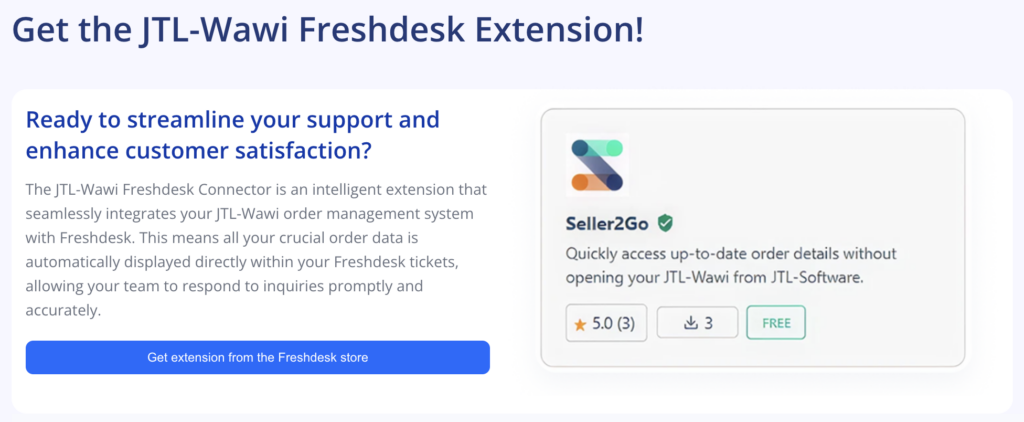
After clicking it, the Freshworks Marketplace opens. Freshdesk explains that apps are discovered there and installed by selecting the desired app and starting the installation.
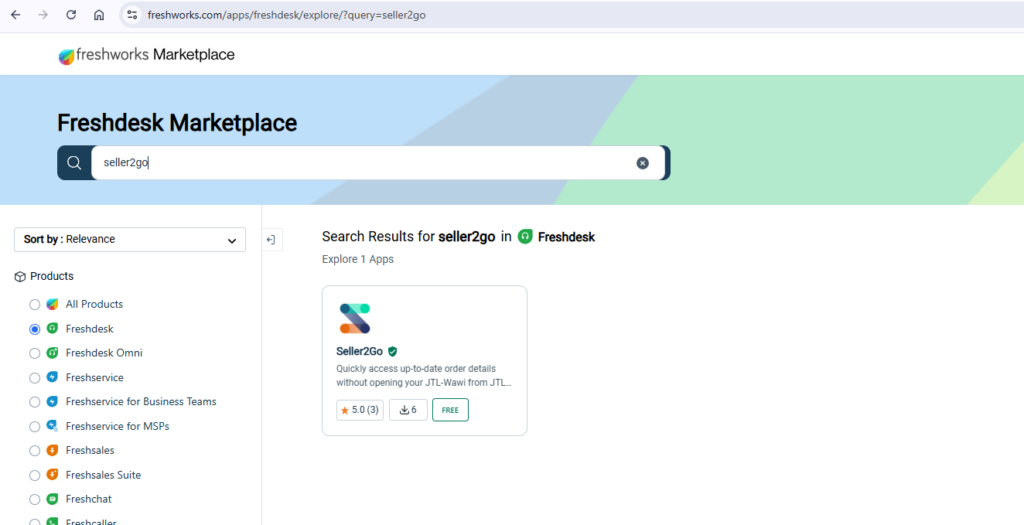
In this step:
- the Marketplace is opened
- the Seller2Go extension is displayed
- the installation of the Freshdesk app is started
✓ Note:In the Marketplace, the Seller2Go app must be selected.
Enter the Freshdesk Domain
Before the actual installation, Freshdesk asks for the product or instance domain.
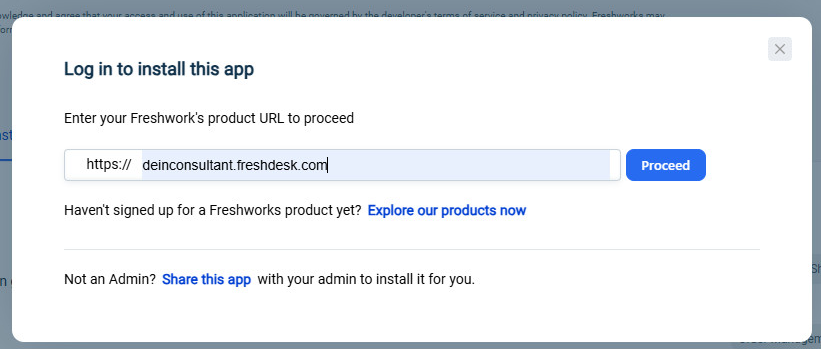
Here, you enter your own Freshdesk domain, for example: yourcompany.freshdesk.com
✓ Important:You must enter your own Freshdesk instance here so that the app is installed in the correct Freshdesk system.
After you confirm it, the app opens inside the Freshdesk admin area
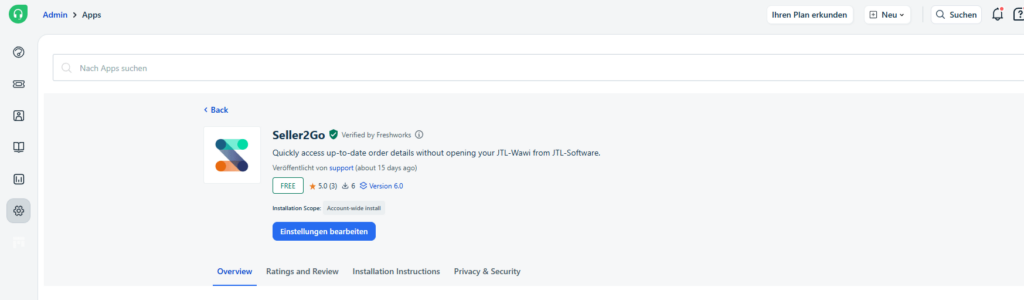
Configuration in Freshdesk
After installing the app, or when opening it later, go to the settings of the Seller2Go app in Freshdesk.
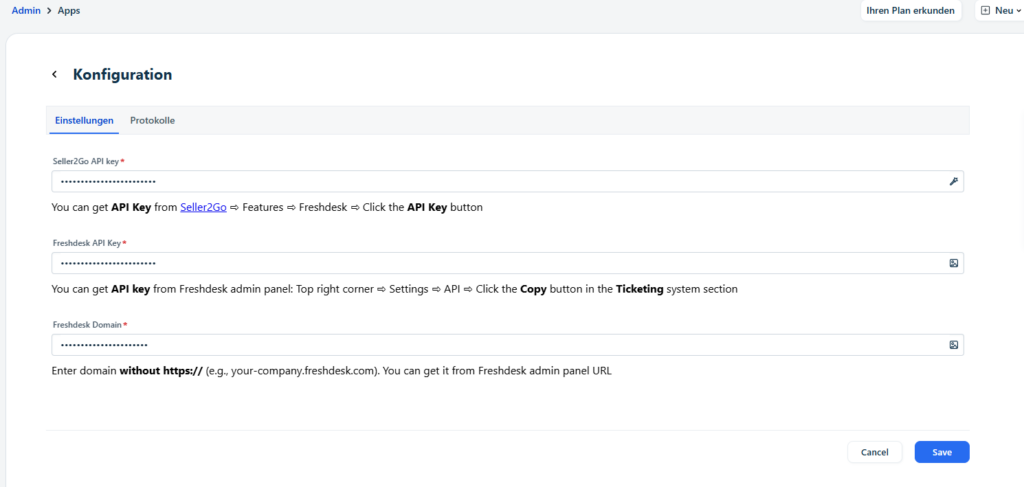
The following fields are completed in this form:
- Seller2Go API key
- Freshdesk API Key
- Freshdesk Domain
Source of the values
1. Seller2Go API key
You get this in Seller2Go under: Functions → Freshdesk → API Key or Copy API Key.
2. Freshdesk API Key
You get this directly in Freshdesk in the admin area. Freshdesk’s documentation says the path is through the profile area in the top-right corner, where you open Profile Settings and then view or copy the API key.
3. Freshdesk Domain
Enter the Freshdesk domain here without https://. Example: yourcompany.freshdesk.com
✓ Note:The field descriptions in the form already explain where the respective values come from.
✓ Important:The domain must not be entered with https://, but only as the plain domain.
When all fields have been completed, click “Save.”
Result After a Successful Connection
After saving, the Freshdesk Connector is connected to Seller2Go. From that point on, Freshdesk can provide order information from JTL-Wawi for relevant processes and tickets.
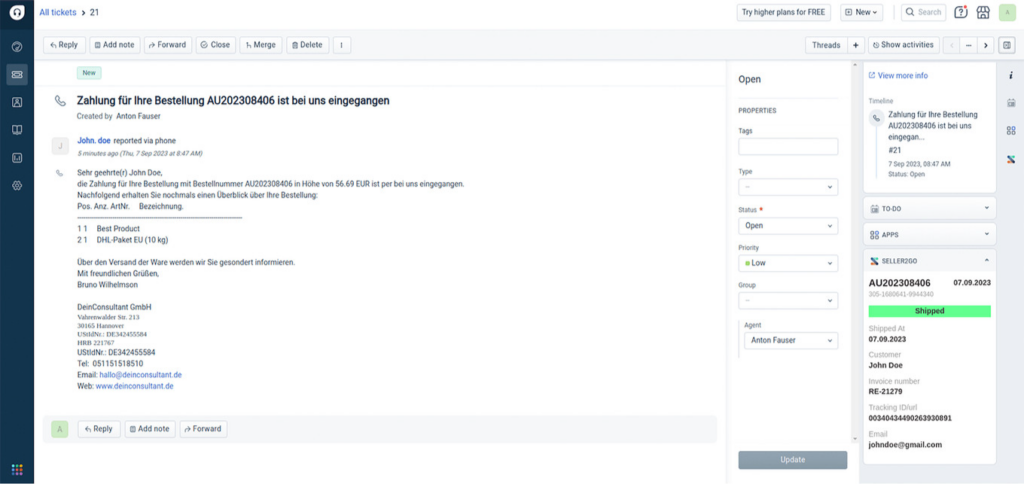
Visible result in the ticket:
- order number
- date
- shipping status
- shipping date
- customer
- invoice number
- tracking ID or tracking link
- email address
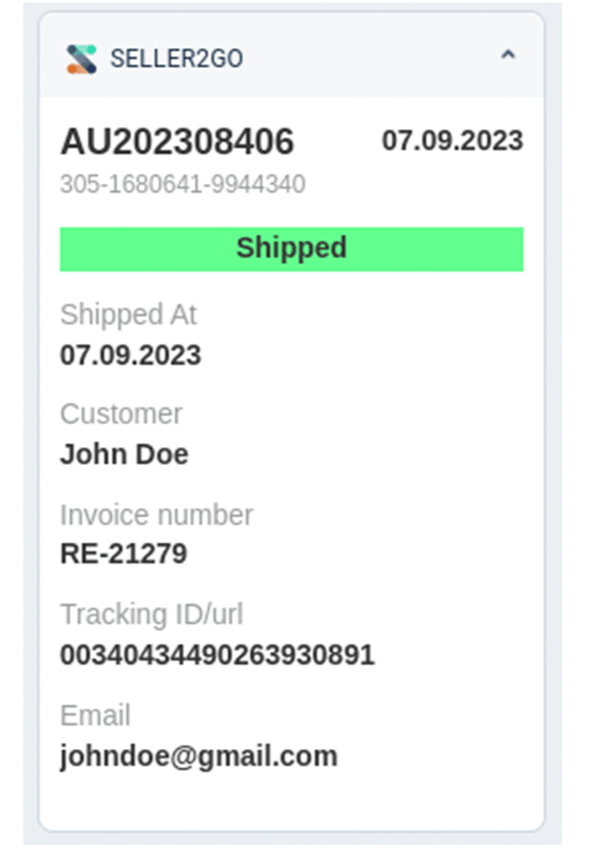
✓ Note:The order information appears as an additional information box or side panel directly inside the Freshdesk ticket. Freshdesk’s own interface documentation describes this as an additional information panel or apps pane in the ticket details view.
✓ Important:The main advantage is that support agents can see the most important order data without having to switch separately to JTL-Wawi. Seller2Go explicitly describes this as faster support handling through direct access to order details within the ticket context.
Result of This Section
After completing these steps, the Freshdesk Connector has been set up successfully.
Completed:
- “Functions” section opened
- Freshdesk Connector selected
- Seller2Go API key opened
- plan or trial period checked
- extension opened in the Freshdesk Marketplace
- Freshdesk domain entered
- app installed in Freshdesk
- configuration form opened
- Seller2Go API key entered
- Freshdesk API key entered
- Freshdesk domain entered
- connection saved
- order information made visible in the Freshdesk ticket